Help
Forward your school emails to KinLoop
Last updated 22 November 2026
You set this up once. Your email service then sends school and club emails on to your family’s KinLoop address by itself, and only those emails. We never log in to your inbox.
It takes about 5 minutes, on a computer. Phone email apps can’t set up forwarding.
Before you start
- Open KinLoop on the step Forward your school emails to KinLoop, or in Settings, under Your KinLoop address. You’ll copy two things from there: your KinLoop address, and the list of school and club addresses (in Gmail, this is ready-made filter text).
- Use the email account the school writes to. If both parents get school emails, each of you sets this up from your own account.
- Keep your phone nearby. Your email service may ask you to confirm it’s you.
Gmail
Gmail needs three things: your KinLoop address added, forwarding confirmed, and a filter that picks out the school emails. Watch how to create the filter (YouTube).
Part 1: add your KinLoop address
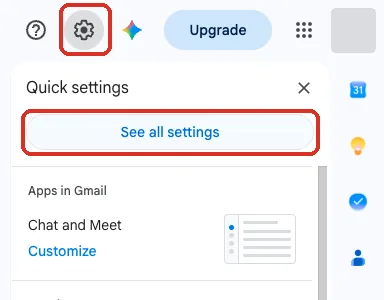
- In Gmail, press the cog at the top right, then See all settings.
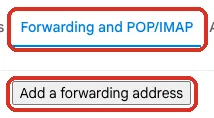
- Open the Forwarding and POP/IMAP tab and press Add a forwarding address.
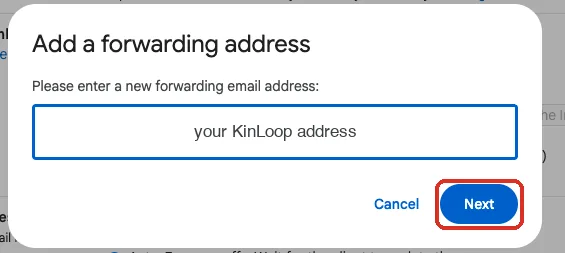
- Paste your KinLoop address and press Next.
- Google may ask you to confirm it’s you, for example by tapping Yes on your phone.
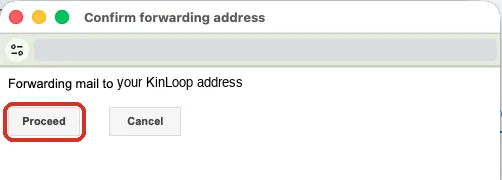
- Gmail checks the address. Press Proceed.
Part 2: confirm forwarding
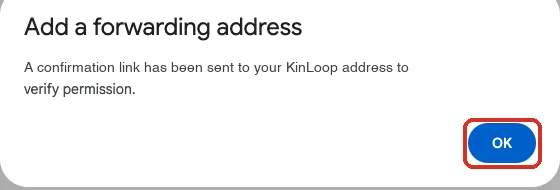
- Gmail sends a confirmation to your KinLoop address. Press OK.
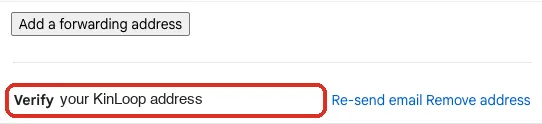
- Go back to KinLoop. Within a minute, a Confirm forwarding in Gmail button appears next to your Gmail address. Press Check if it hasn’t. Press the button, then Confirm on Gmail’s page. If KinLoop shows a code instead, type it into Gmail and press Verify.
- Leave Disable forwarding selected in Gmail’s settings. You only want school emails forwarded, not everything. The filter does that.
Part 3: create the filter
The filter is the last step. It tells Gmail which emails to send on: only those from your schools and clubs. Everything else stays in your inbox, untouched. KinLoop has already written the filter text for you, from the schools and clubs you added.
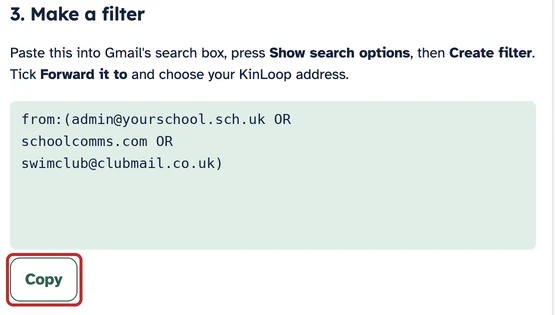
- Copy your filter text from KinLoop. On the step Forward your school emails to KinLoop, find 3. Make a filter and press Copy. You don’t need to type or change anything.
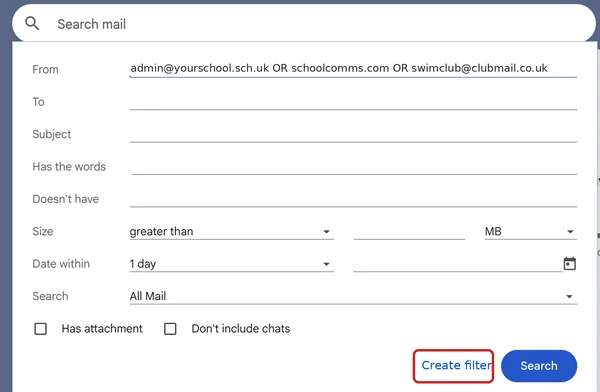
- Paste it into Gmail’s search box. Click the search box at the top of Gmail and paste (Cmd + V on a Mac, Ctrl + V on Windows). Don’t press Enter. Then press Show search options: the sliders button at the right-hand end of the box.

- Check the From line, then press Create filter. Gmail opens a panel with your school and club addresses already in the From line. Leave every other box empty and press Create filter, at the bottom: not Search.
- Forward to KinLoop. Tick Forward it to, then choose your KinLoop address from the list next to it. Leave the other boxes unticked, and press Create filter.
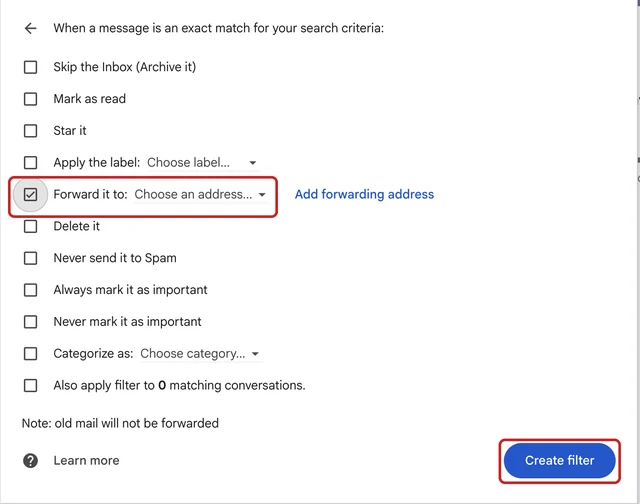
That’s it. From now on, new emails from your schools and clubs go to KinLoop by themselves, and a copy stays in your inbox as normal. Older emails aren’t sent, which is why set-up asks you to forward a few recent ones by hand.
If something doesn’t look right
- Your KinLoop address isn’t in the Forward it to list. Part 1 or Part 2 isn’t finished. Go back and confirm forwarding first.
- The From line is empty. The text didn’t paste. Close the panel, click the search box, paste again, then press the sliders button.
- Gmail says the filter is too long. If you have several schools, KinLoop splits the filter text into two or more boxes. Make one filter for each box.
- You add a new school or club later. KinLoop updates your filter text. Make a new filter with it, and delete the old one in Gmail’s Settings, Filters and Blocked Addresses.
Gmail shows a reminder banner about forwarding for about a week. That’s normal.
Outlook or Hotmail
- Open Outlook on the web (outlook.com), then Settings, Mail, Rules, Add new rule.
- Call it KinLoop. Under Add a condition, choose From and add each school and club address from KinLoop. For a whole domain (no @ sign), choose Sender address includes instead.
- Under Add an action, choose Forward to, paste your KinLoop address, and save.
- In KinLoop, add your Outlook address under Addresses you forward from. Outlook sends emails on from your own address, so this tells us they’re yours.
Outlook doesn’t send a confirmation, so there’s nothing to confirm. A work Outlook account may not allow forwarding; if so, forward school emails yourself.
iCloud Mail
- On a computer, go to icloud.com/mail, then Settings (the cog), Rules, Add a rule.
- Choose is from and type a school address. Then choose Forward to and paste your KinLoop address.
- Add a rule like this for each school and club address in KinLoop.
iCloud doesn’t send a confirmation either. Your school emails will start appearing on Home.
Another email service
Most email services have rules or filters that forward emails from chosen addresses. Use the school and club addresses from KinLoop, and forward them to your KinLoop address. If you get stuck, email us and we’ll help.
Check it’s working
- Gmail: KinLoop shows Forwarding from your address is working once the first school email forwards by itself. Pressing Confirm in Gmail doesn’t tell us, and emails you forward by hand don’t count, so this can take until the school next writes.
- Every service: new school emails appear on Home and in your calendar a few minutes after they arrive.
- Nothing yet? Check the filter or rule lists the school’s address exactly as it appears on their emails, and that it forwards to your KinLoop address.
Common problems
- No Confirm forwarding button in KinLoop. Wait a minute and press Check. Still nothing? In Gmail’s Forwarding and POP/IMAP settings, press Re-send email next to your KinLoop address.
- The second parent can’t see their own button. Each parent logs in to KinLoop as themselves. Their own Gmail address is listed first.
- Emails you forward by hand. They still work: we read emails from your login address and any address you add under Addresses you forward from.
- The school starts writing from a new address. Add it in KinLoop, then update your filter or rule.
- Gmail’s phone app. It can’t set up forwarding or filters. Use a computer.
Stopping forwarding
Delete the filter or rule, and remove your KinLoop address from your email’s forwarding settings. Nothing more reaches KinLoop. To delete what’s already there, delete your family in Settings.
Need help? Email hello@kinloop.co.uk.